
BetterDocs gives you the freedom to customize the Archive Pages and change their appearance any way you want. Now, let’s follow the below guidelines to personalizar las páginas del archivo de documentación en BetterDocs:
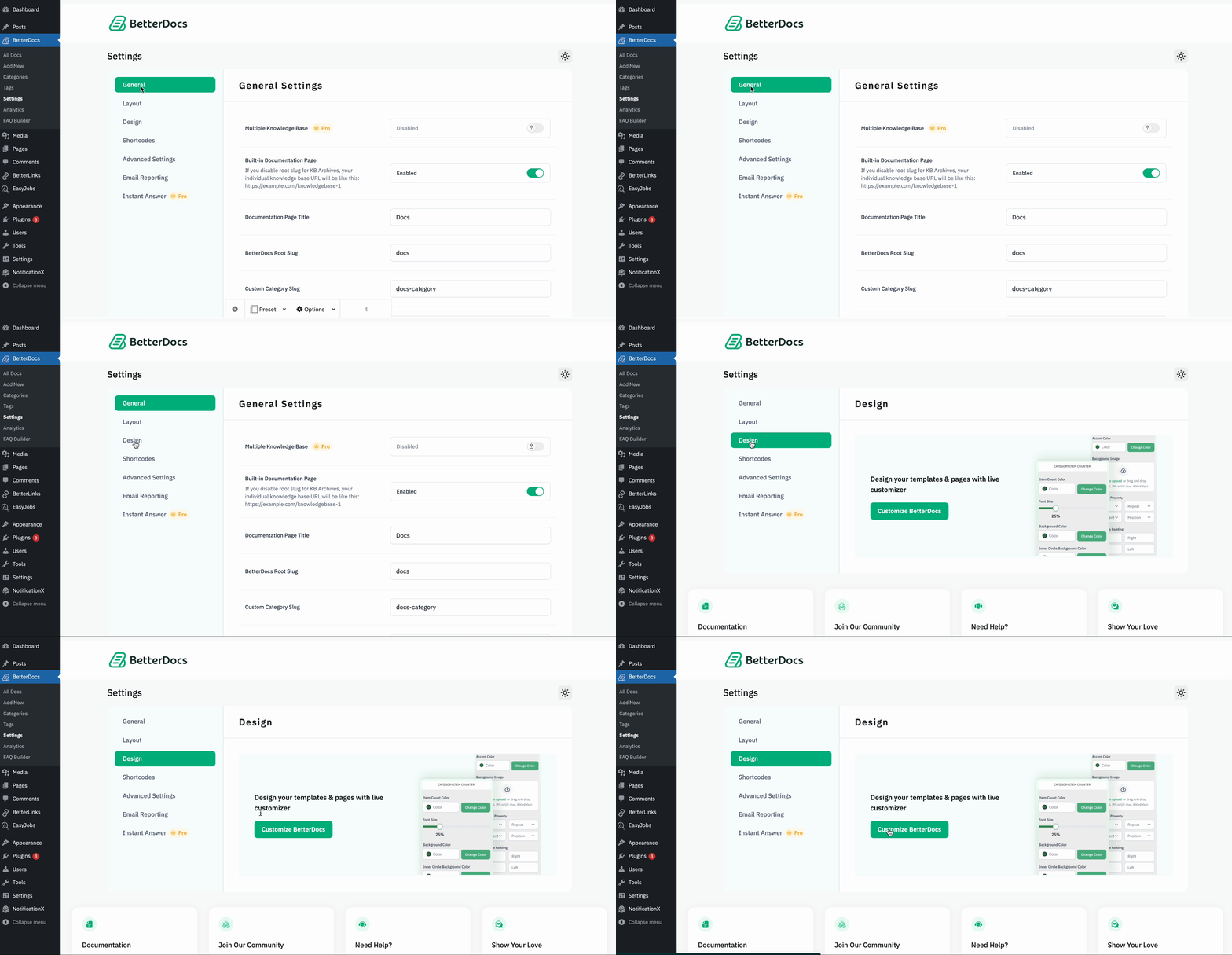
Step 1: Go To BetterDocs Settings #
First of all, go to the BetterDocs Settings by navigating to wp-admin -> BetterDocs -> Configuración. Luego, abra el 'Diseño' lengüeta. Ahora, presiona el 'Personalizar BetterDocs' botón y será redirigido a la página Personalizar.
Step 2: Configure Customize BetterDocs Option #
De ‘BetterDocs Customizer’, you can pick the ‘Archive Pages’ option. You will then find all the styling options to modify the appearance of the Páginas de archivo opción.
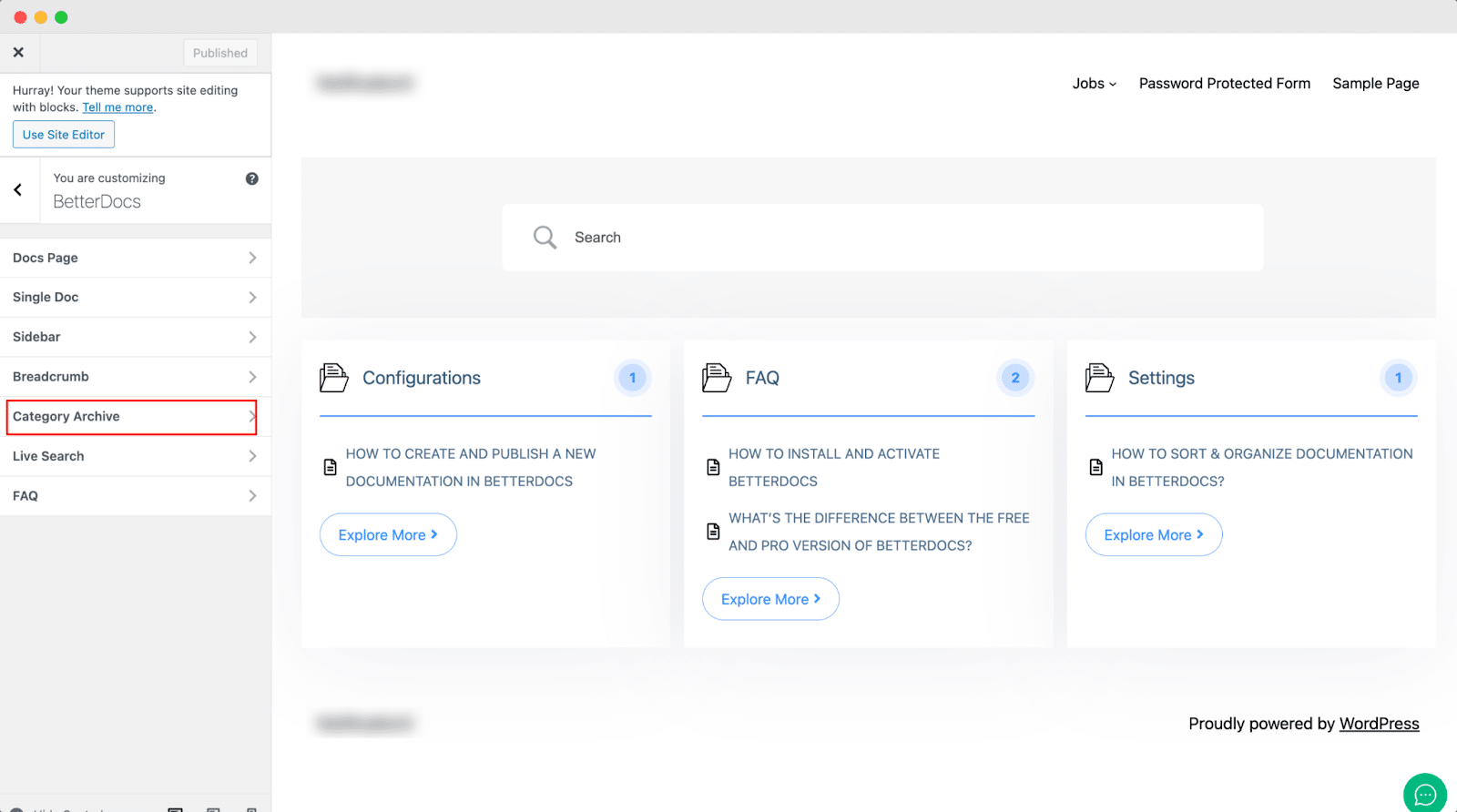
Por defecto, Personalizador BetterDocs redirects you to the doc landing page as a preview. So, you can click on the ‘Category’ and you will be redirected to the respective archive pages. Afterward, you can check out the changes you make in real-time.
Luego, puede seguir adelante y cambiar los colores de Fondo de página, Fondo de área de contenido, Título, Icono de lista y muchos otros. Si lo desea, incluso puede agregar un ‘Background Image’ and change its properties as well. Besides, you can play around with the Content Area Margin and Archive Title Margin. Make sure to hit on the 'Publicar' botón para guardar sus cambios.
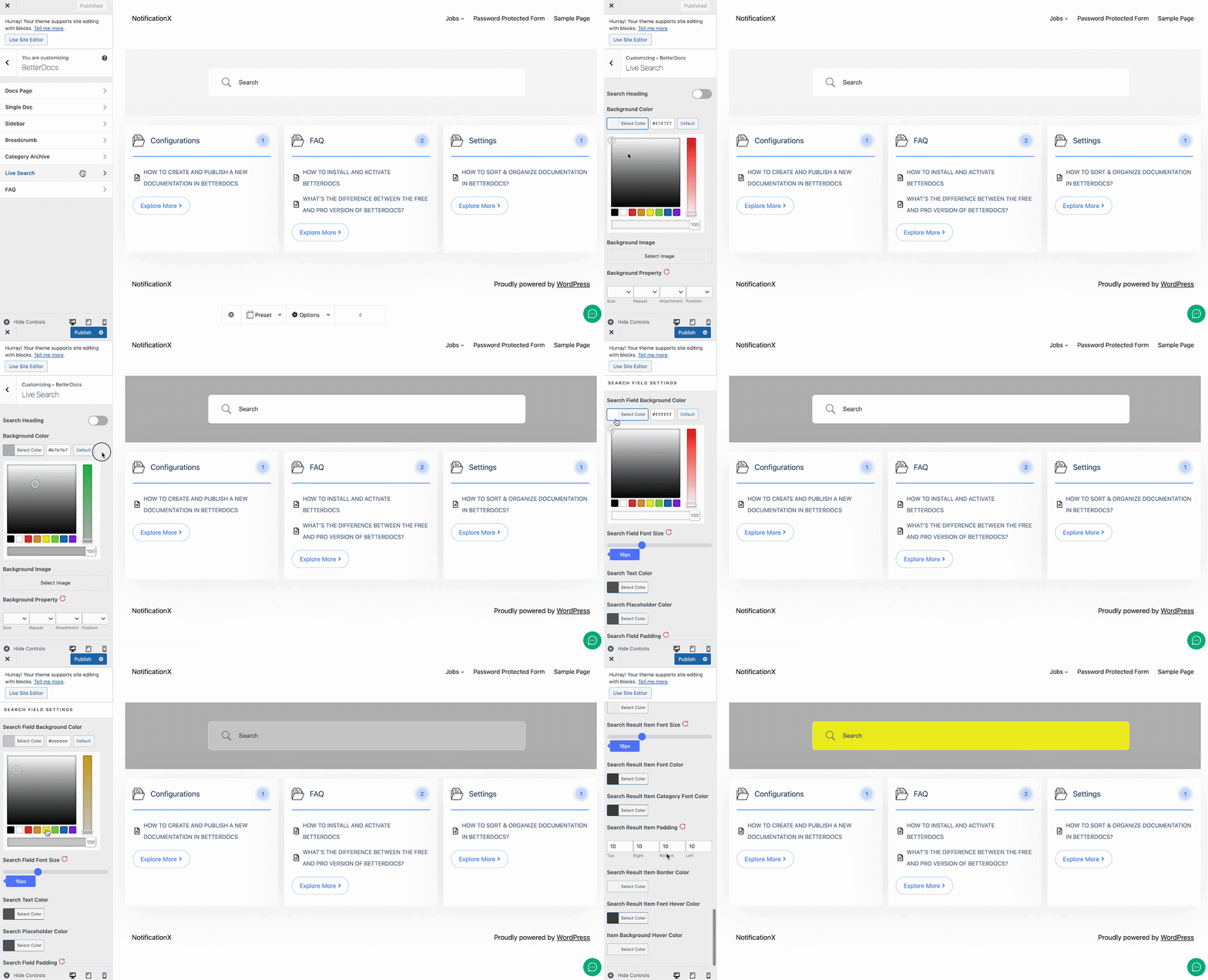
This is how easily you can customize the documentation archive pages with BetterDocs and enhance your user experience.
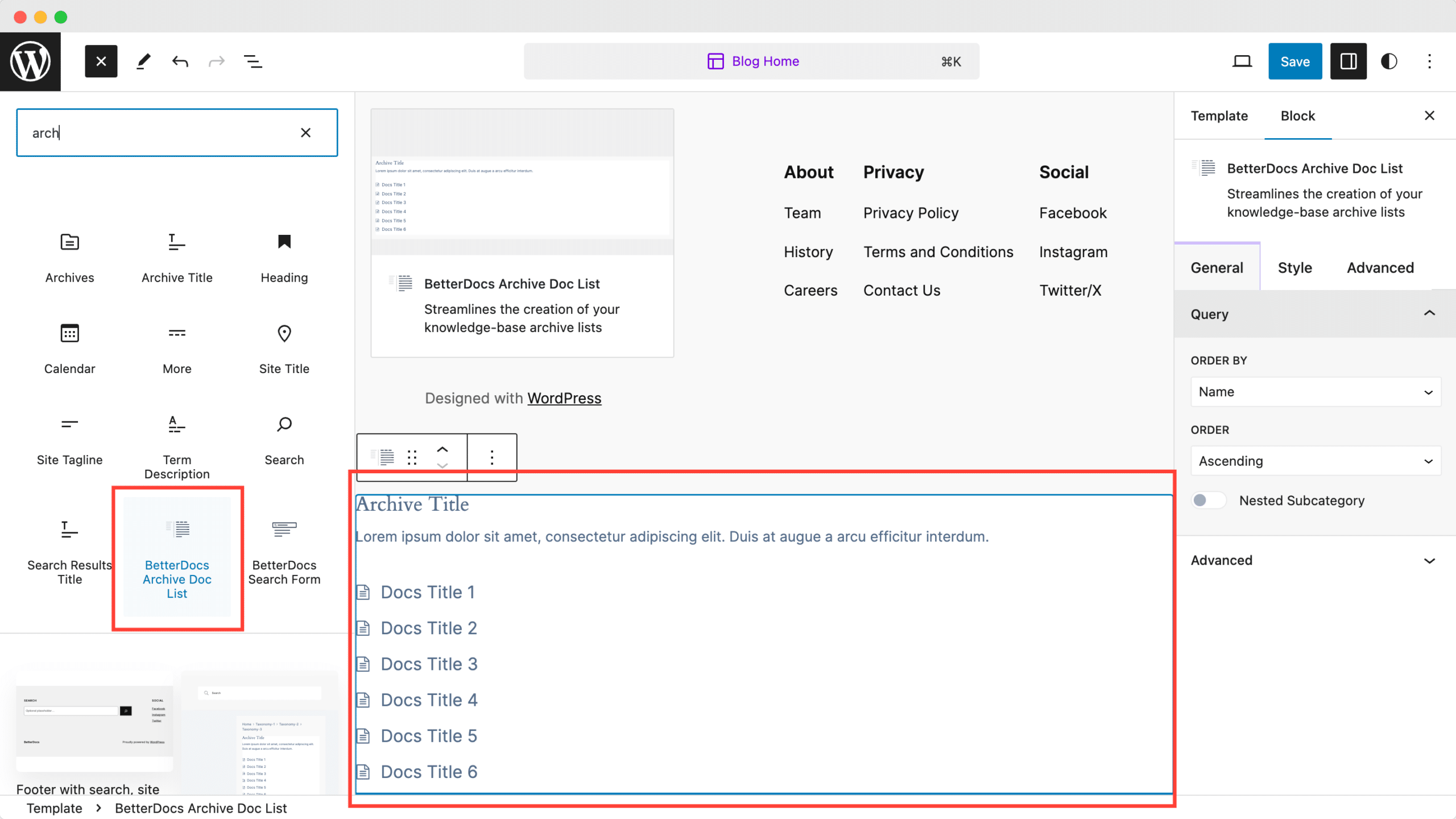
Moreover, BetterDocs provides a Full Site Editor compatible block of archive page list feature where you can select different orders and more. You can now choose different doc list designs directly using BetterDocs compatibility for the WordPress full site editor.
If you face any difficulties, feel free to contact our support team.


