
- Stap 1: Activeer BetterDocs Instant Answer
- Stap 2: Configureer de initiële inhoudsinstellingen
- Step 3: Customize Home Settings
- Step 4: Customize Message Settings
- Step 5: Customize Instant Answer Resources
- Step 6: Set Up Instant Answer Single Doc
- Step 7: Cross Domain To Show On Another Website
- Uiteindelijke uitkomst
BetterDocs PRO lets you add a fantastic 'Direct antwoord' toolbar to your website so that users can easily find the article they are searching for. You can place this on any page and reduce the pressure on your support queries. With its feedback form, users can even leave messages and contact you. Follow the below guidelines to configure the Instant Answer feature of BetterDocs:
Stap 1: Activeer BetterDocs Instant Answer #
Zorg er allereerst voor dat u de 'Direct antwoord' optie van BetterDocs-instellingen. Ga daarvoor naar wp-admin -> BetterDocs -> Instellingen. Afterwards, switch to the 'Direct antwoord' tabblad en schakel het in.
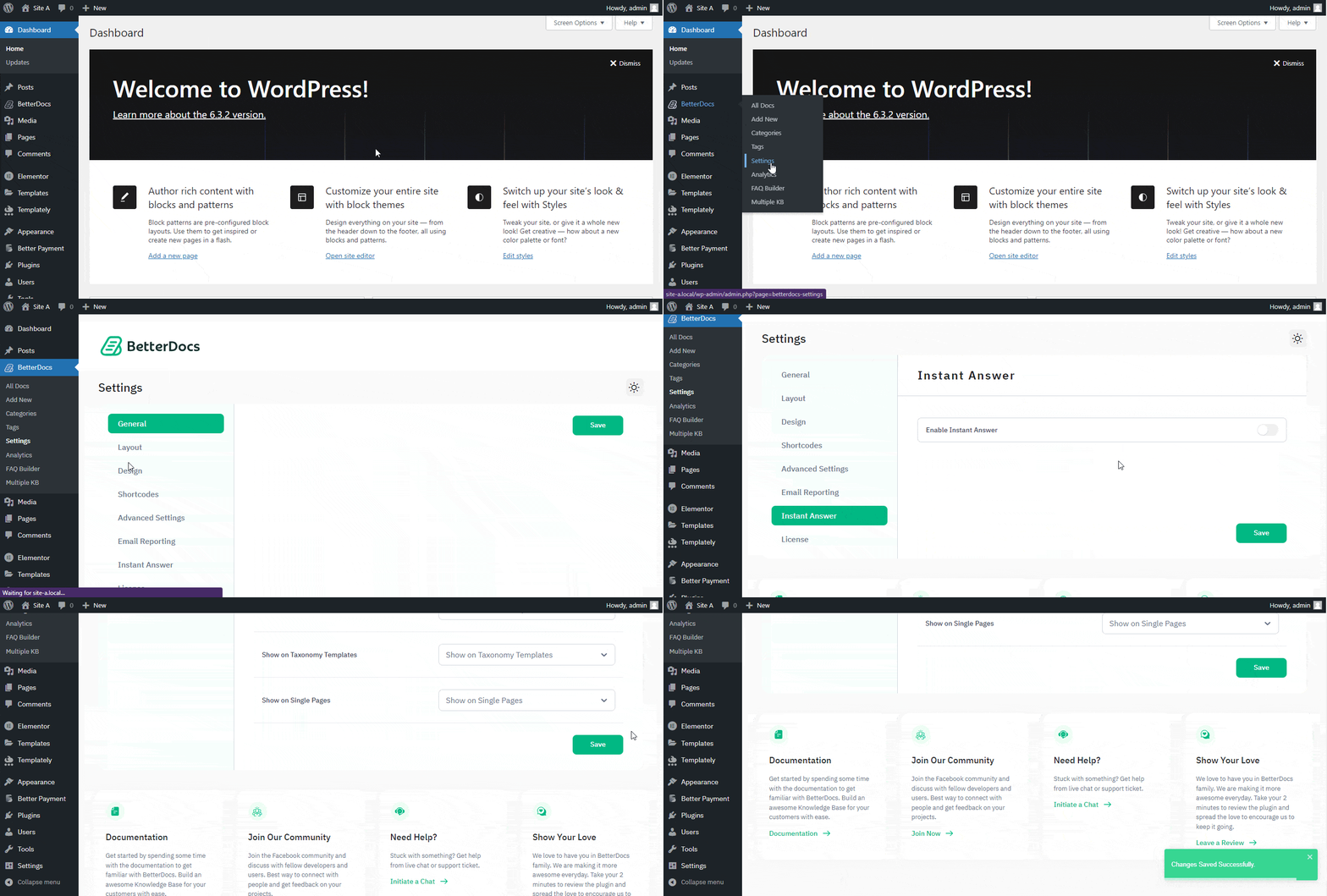
Je kan zelfs 'IA Live Preview inschakelen' to view the real-time changes you have made to your overall Instant Answer settings.
Stap 2: Configureer de initiële inhoudsinstellingen #
Van de ‘Initial Content Settings’, you can choose options to display content on particular pages in the ‘Content’ tab and customize them with styling options in the ‘Style’ tab. You can specify on which pages you want to show your ‘Direct antwoord’ toolbar. There are options like Documentation Page, Archived Templates, Taxonomy Templates, and Single Page on the ‘Content’ tab to display IA with BetterDocs.
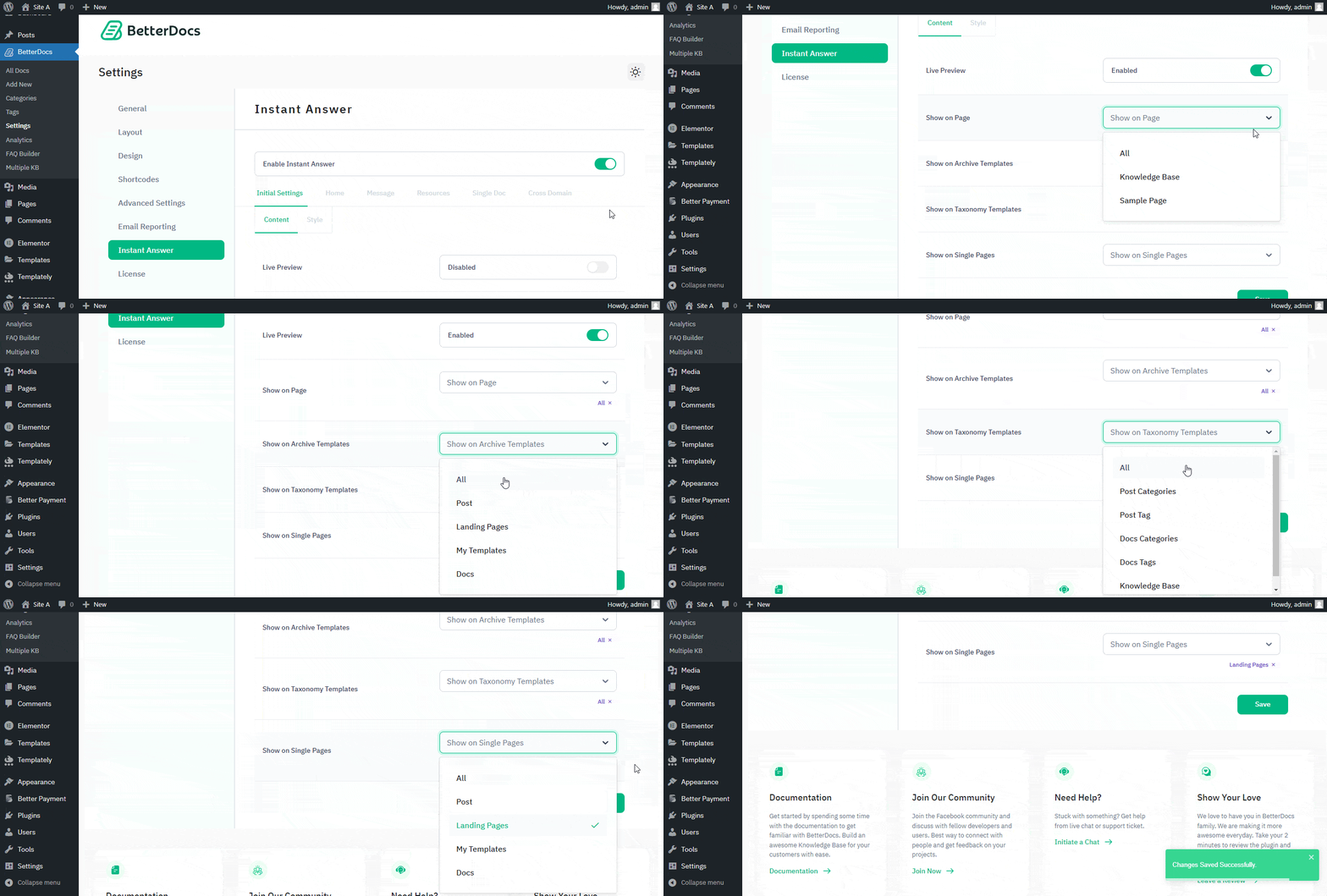
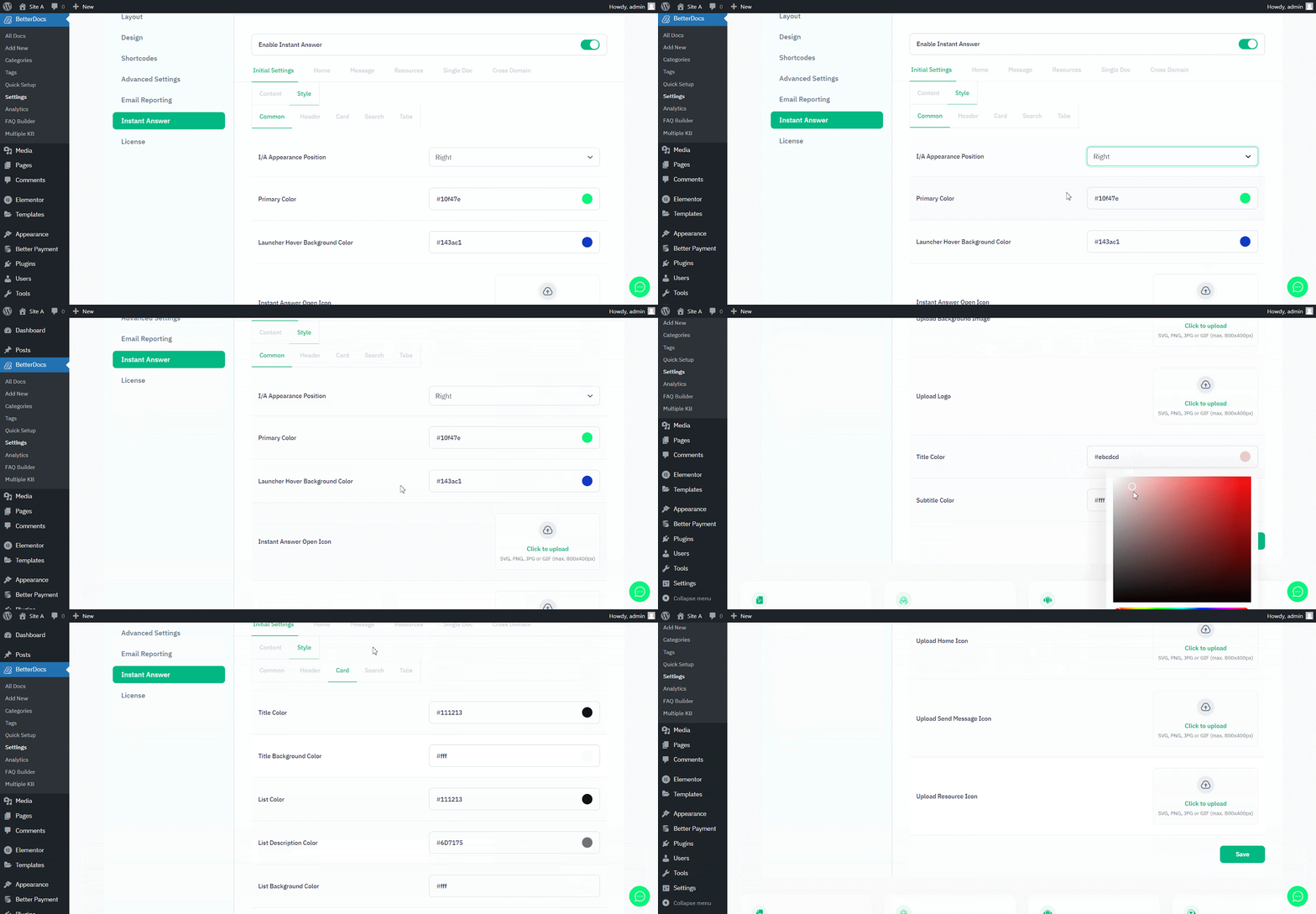
On the other hand, the ‘Style’ tab has options to set the IA toolbar position, pick primary and hover background colours, and add open and close icons for the ‘Common’ tab. Additionally, you can add images, logos, colours, and more from Header, Cards, Search, and Tabs to customize your preference.
Step 3: Customize Home Settings #
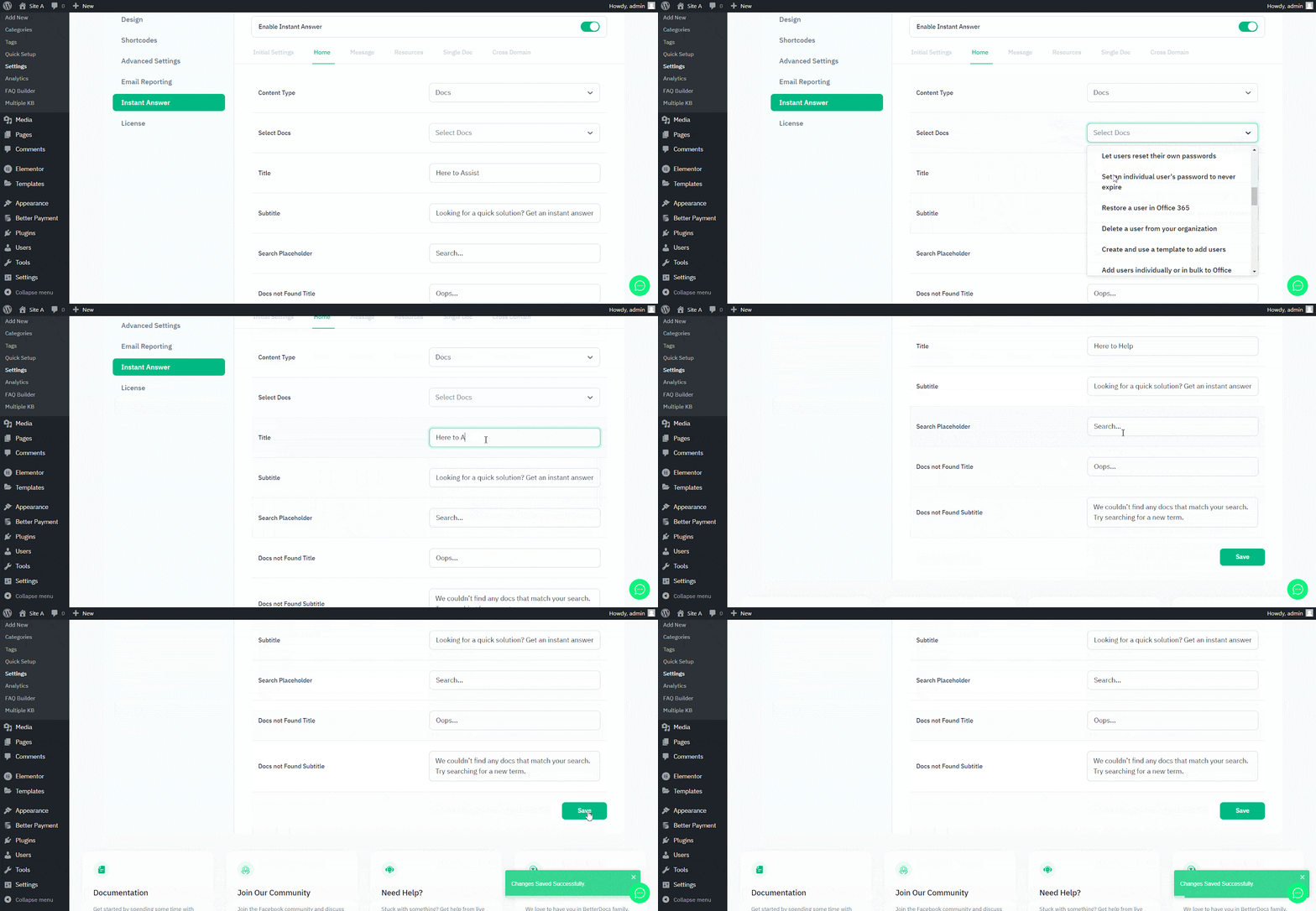
On the ‘Huis’ tab, you can choose all docs or docs categories to display from the ‘Content Type’ option. Additionally, you can ‘Select Docs’ to display specific docs, or it will display all docs by default. There are options to change the Title, Subtitle, Placeholder Text, Docs not Found Title, Docs Not Found Subtitle, and more here.
Step 4: Customize Message Settings #
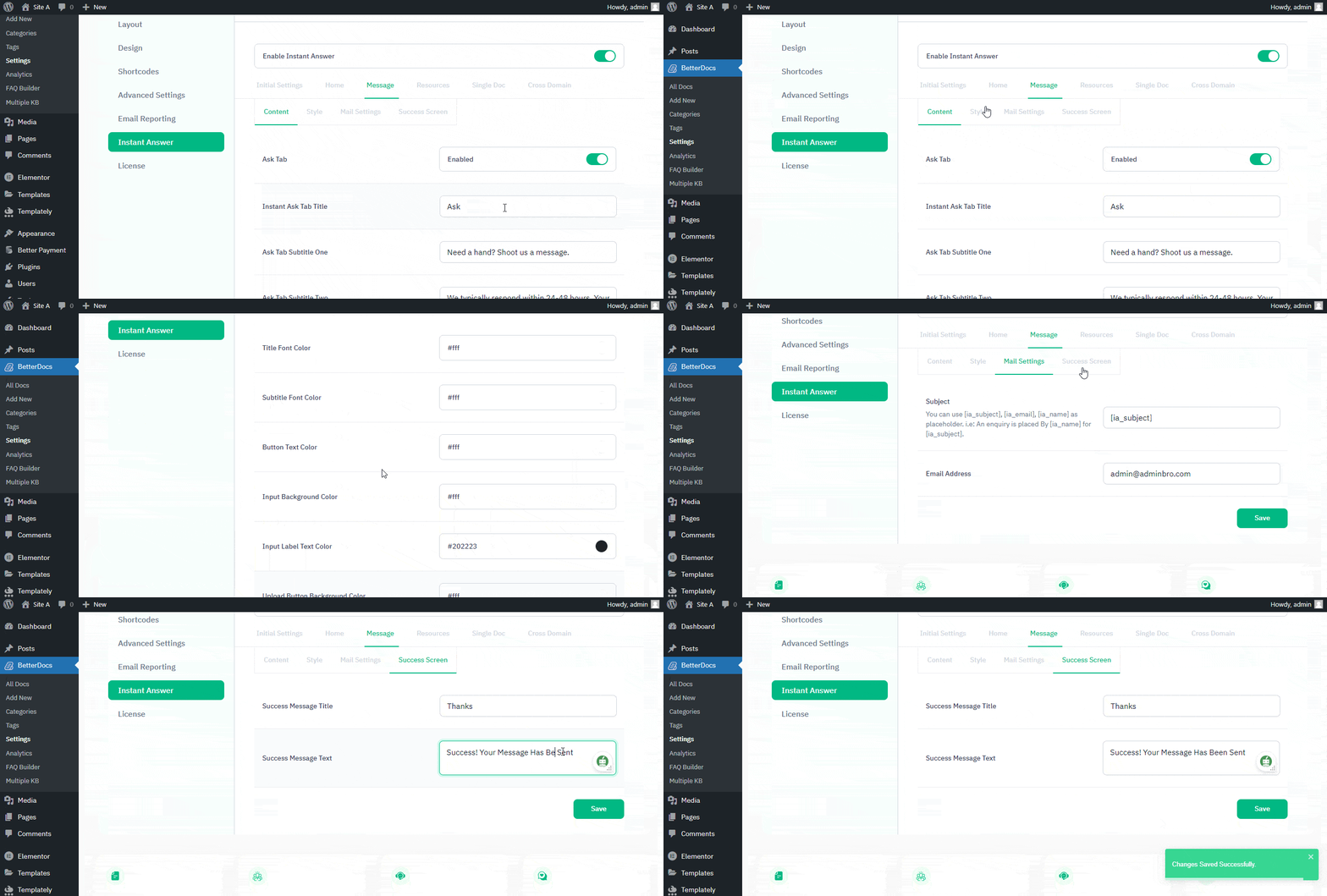
Van de ‘Message’ section, you can enable/disable and customize the ‘Ask’ tab with the title and subtitle on the Content options. You can customize colours for titles, subtitles, buttons, labels, etc., from the Style options. You can add a custom subject and email address from the ‘Mail Settings’ tab and customize the success message title and text on the ‘Success Screen’ tab.
Step 5: Customize Instant Answer Resources #
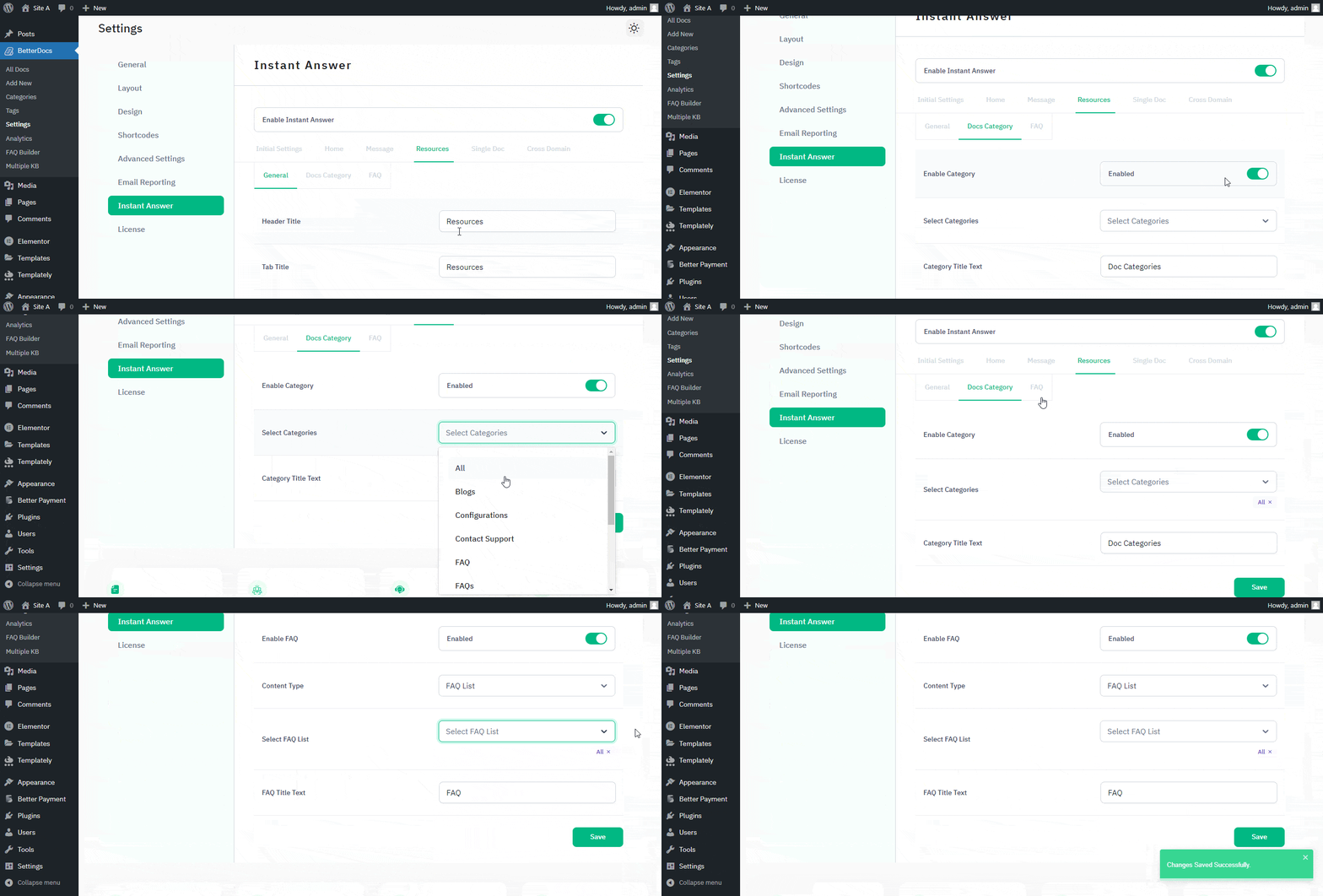
From the ‘Resources’ tab, you can customize the header title and tab title in General sections. Additionally, you can choose docs category, and FAQ Content, and customize them with the number of docs, selections etc.
Step 6: Set Up Instant Answer Single Doc #
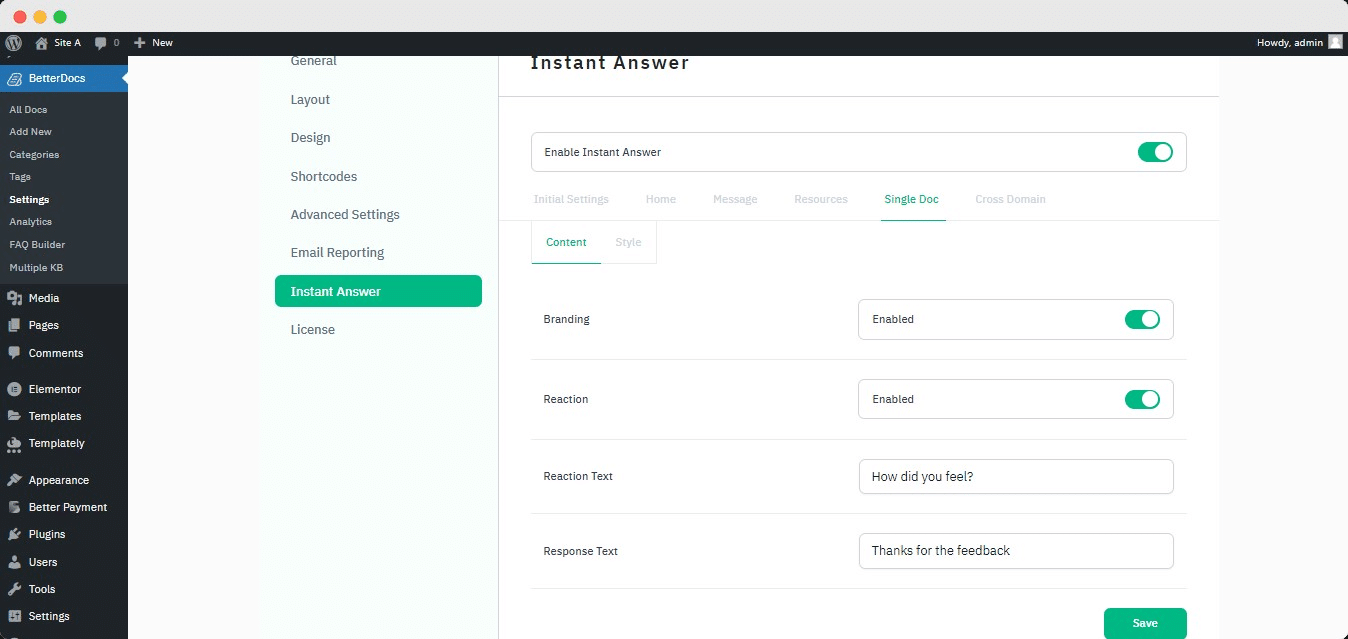
On the ‘Enkele Doc’ tab, you can disable Branding en Reaction with a toggle button. Additionally, you can customize Reaction Text en Response Text to make your single docs appear visually engaging.
Step 7: Cross Domain To Show On Another Website #
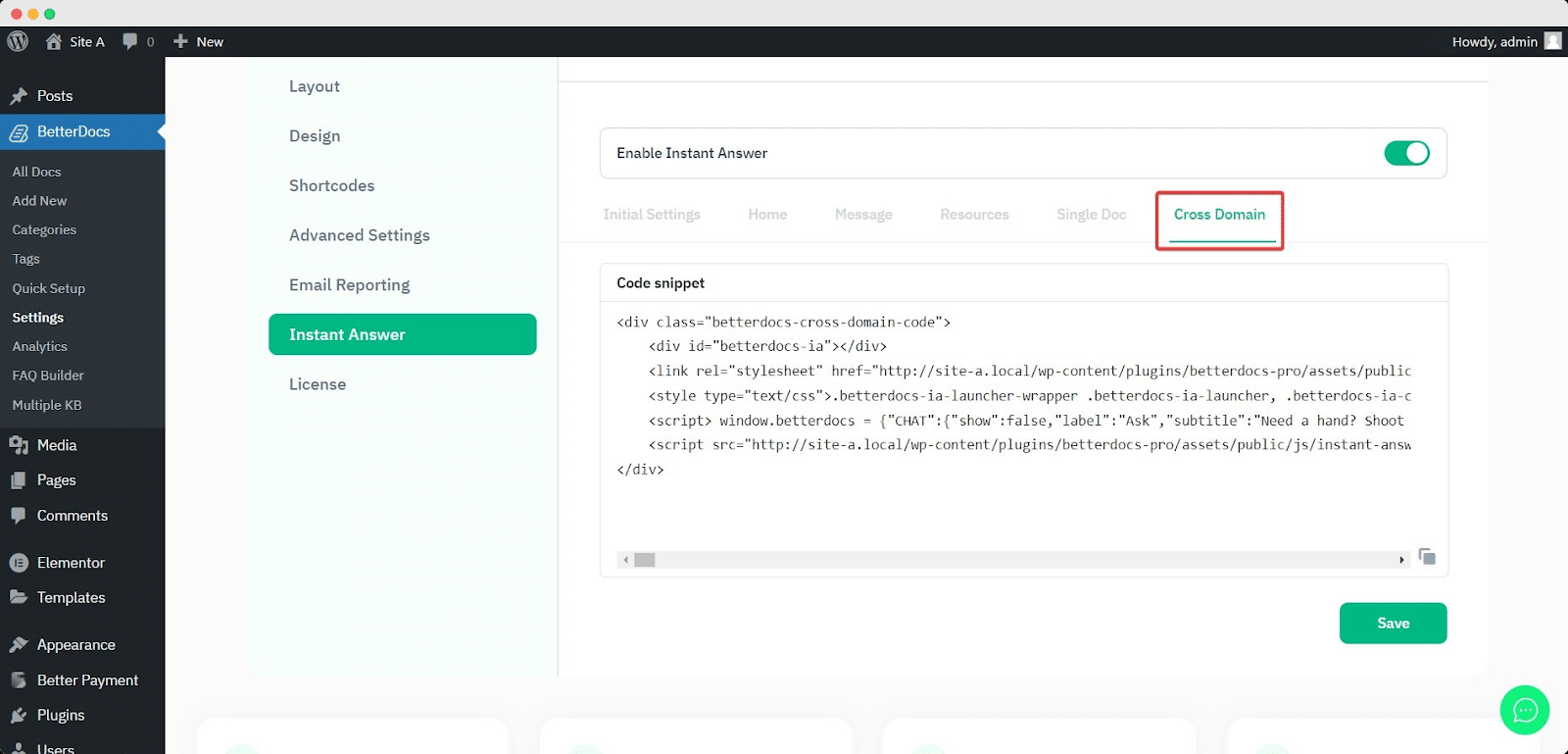
If you want, you can use the ‘Direct antwoord’ tool on the non-WordPress site by configuring its domeinoverschrijdende integratie. You just have to copy the code snippet and paste it on your website, and Instant Answer will be automatically embedded on that site.
Ga naar de wp-admin -> BetterDocs -> Direct antwoord -> Domeinoverschrijdend. Simply by copying and pasting the code snippet, you will be able to use BetterDocs on an external website.
Uiteindelijke uitkomst #
By following all the simple steps above, you will be able to configure and display ‘Direct antwoord’ on your website using BetterDocs voor WordPress.
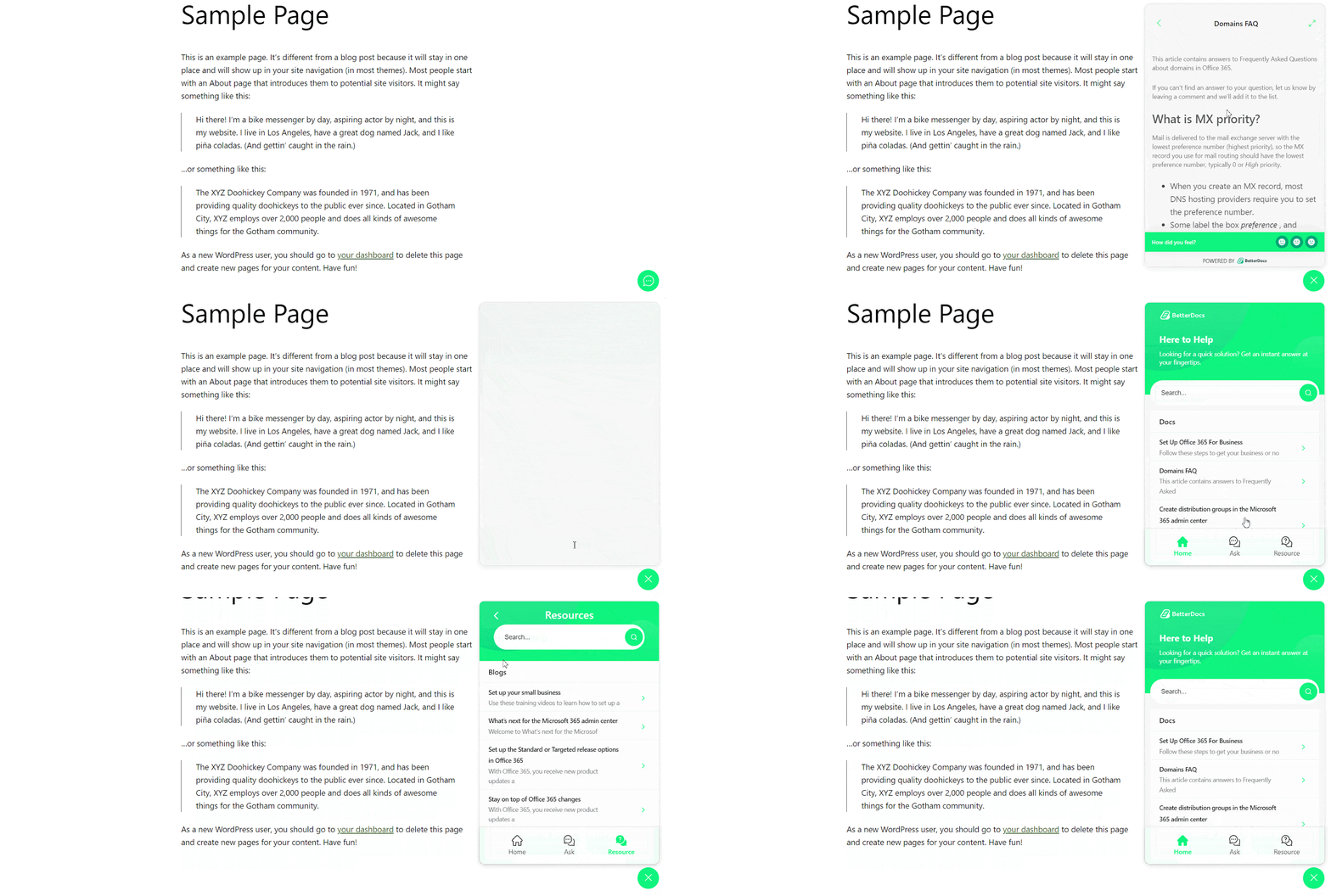
This is how you can configure Instant Answer with BetterDocs to reduce support pressure on your website and help your users get instant help through your knowledge base.
Getting stuck? Feel free to Neem contact op met onze ondersteuning voor verdere assistentie.


