
BetterDocs Pro pozwala Ci manage multiple knowledge bases on your WordPress site simultaneously. It will help you to maintain separate online documentation for different products with full customization options. Check out this step-by-step guideline to manage your multiple knowledge base documentation with BetterDocs below:
Krok 1: Włącz funkcję wielu baz wiedzy #
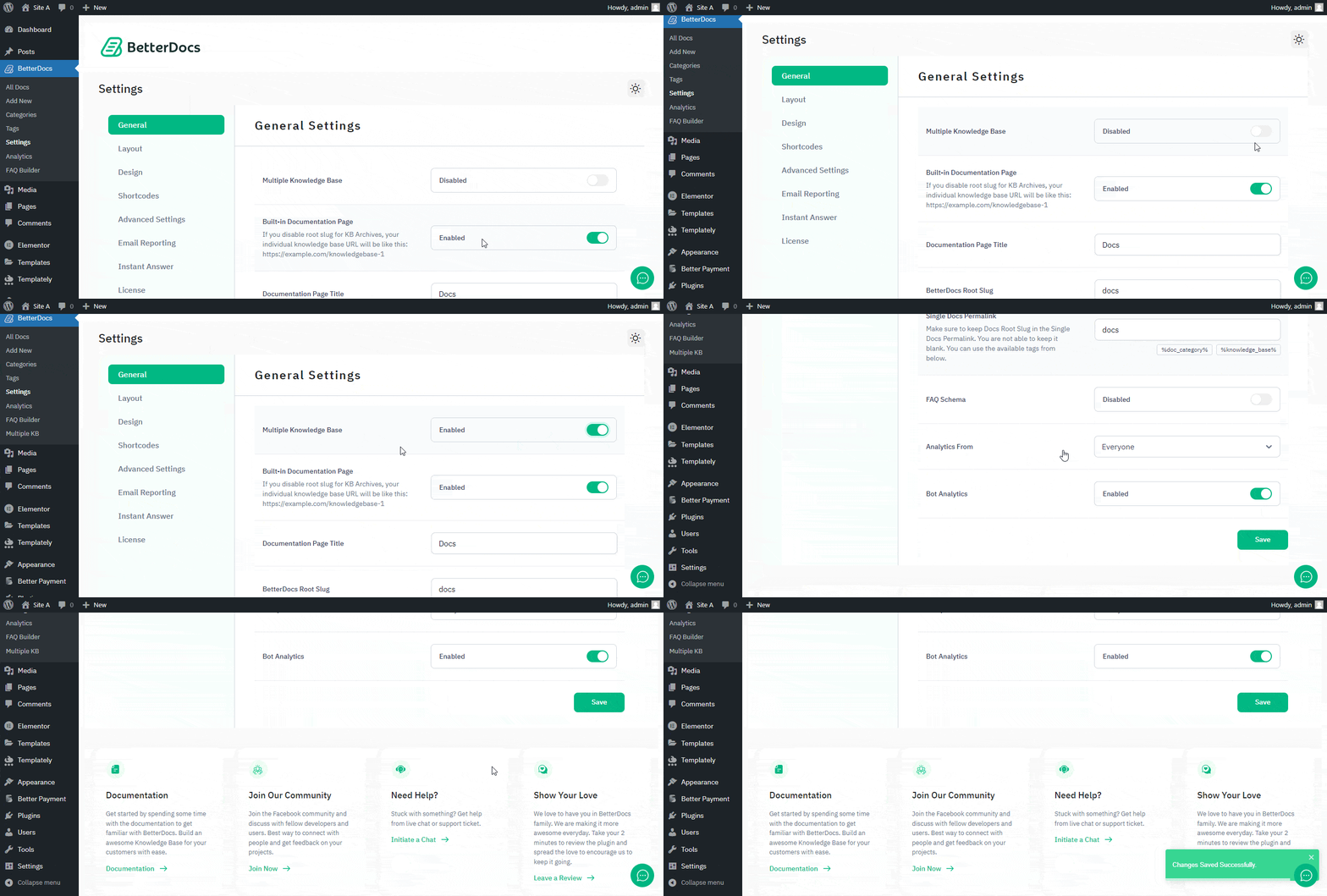
First of all, make sure to use the ‘Enable Multiple Knowledge Base’ opcja z BetterDocs General Settings. Aby to zrobić, przejdź do wp-admin -> BetterDocs -> Ustawienia> Ogólne, and turn on the ‘Enable Multiple Knowledge Base’ to proceed further.
Krok 2: Utwórz wiele baz wiedzy #
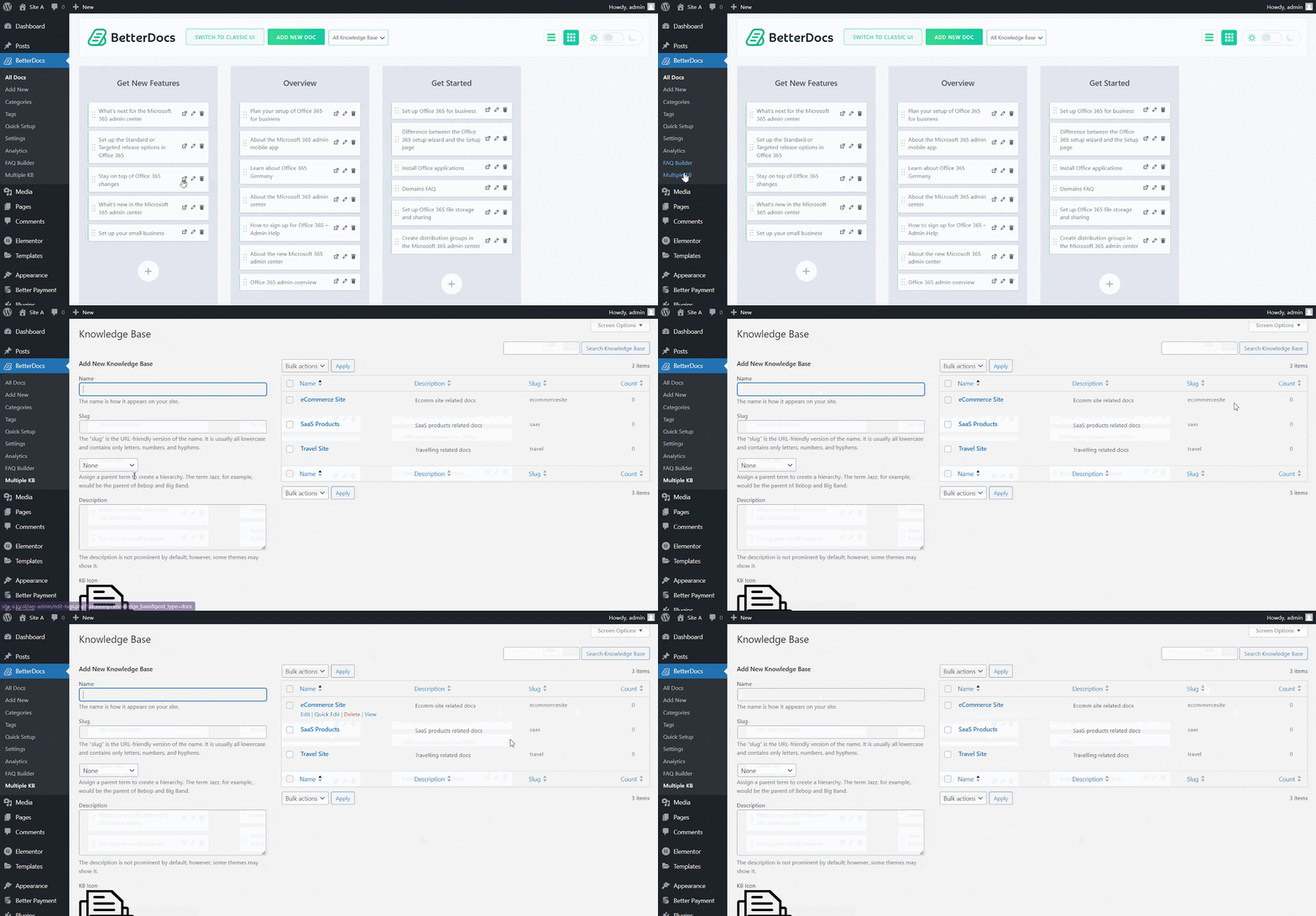
Po włączeniu funkcji wielu baz wiedzy przejdź do BetteDocs ‘Multiple KB’ możliwość rozpoczęcia tworzenia baz wiedzy.
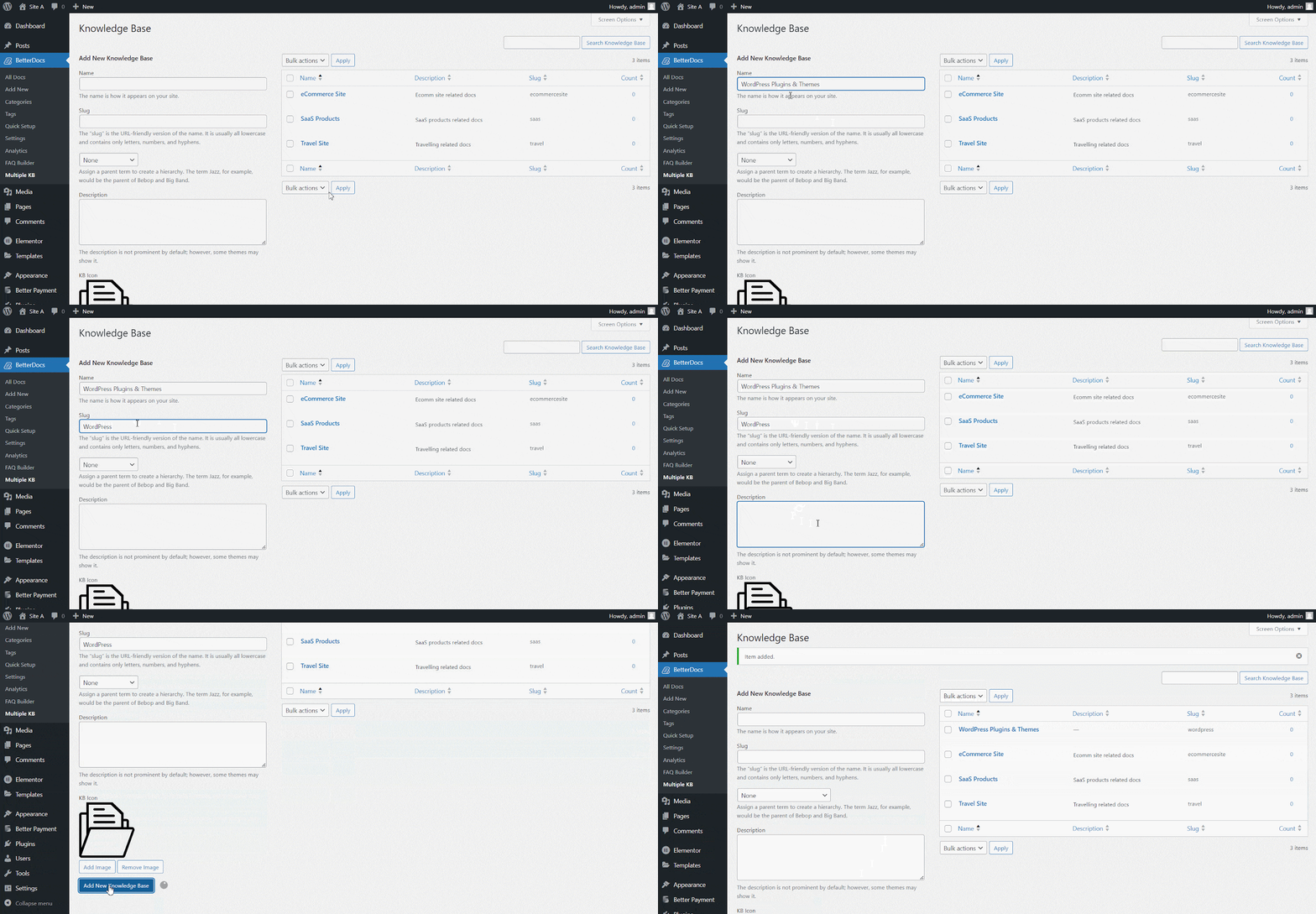
Od ‘Add New Knowledge Base’ section, you can insert ‘Name’ and ‘Slug’ for each documentation. Afterward, hit the ‘Add New Knowledge Base’ button to create your knowledge base.
Krok 3: Dodaj nowe kategorie #
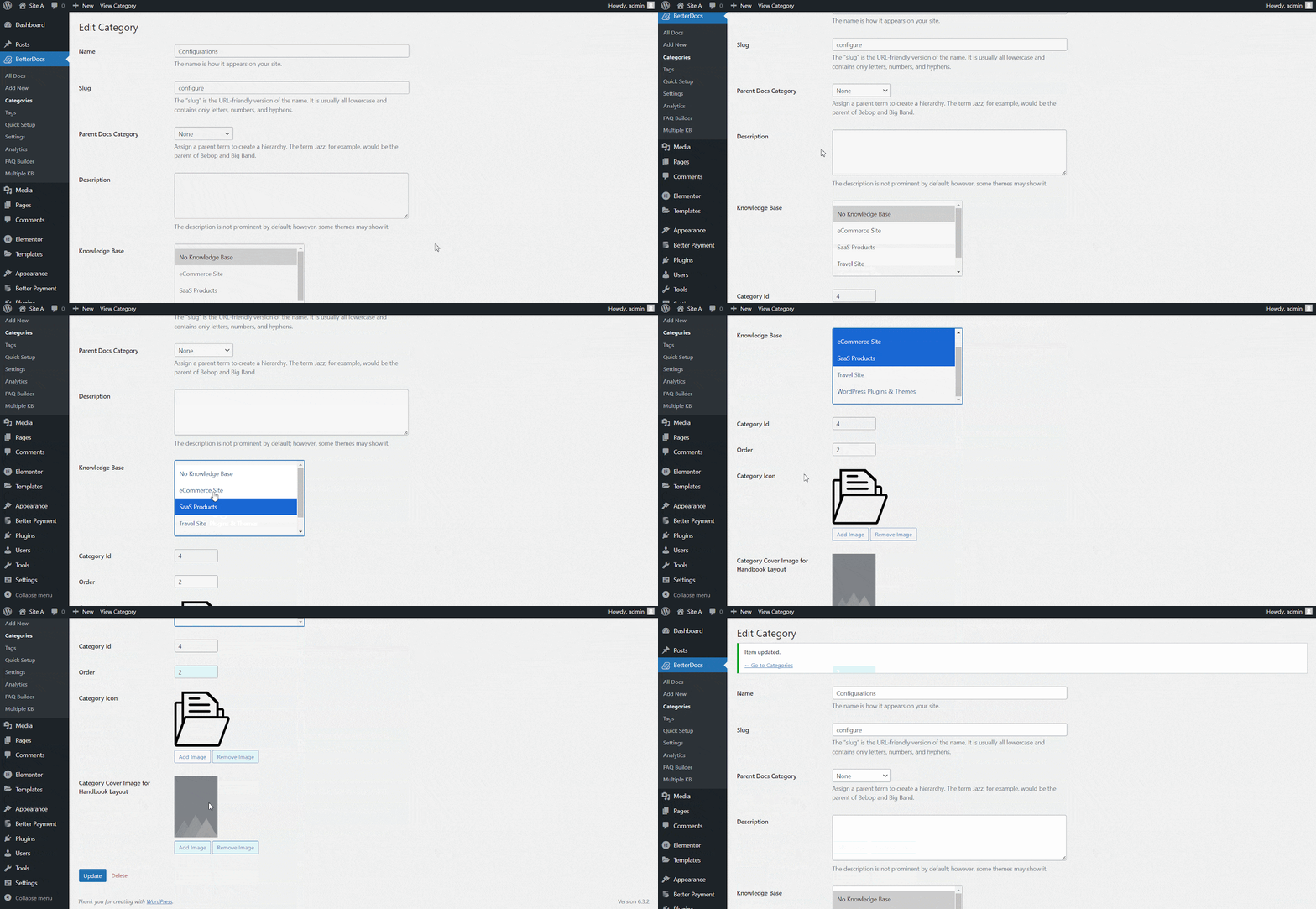
Teraz przejdź do BetterDocs ‘Categories’ to add a suitable category for your Knowledge Base.

Od ‘Add New Docs Category’ section, you can create your Categories for your knowledge base. You can pick one or multiple knowledge bases for each category from the drop-down menu. Besides, you can insert icons for each category and pick their ‘Parent category’ Jeśli chcesz.
Krok 4: Dodaj nową dokumentację #
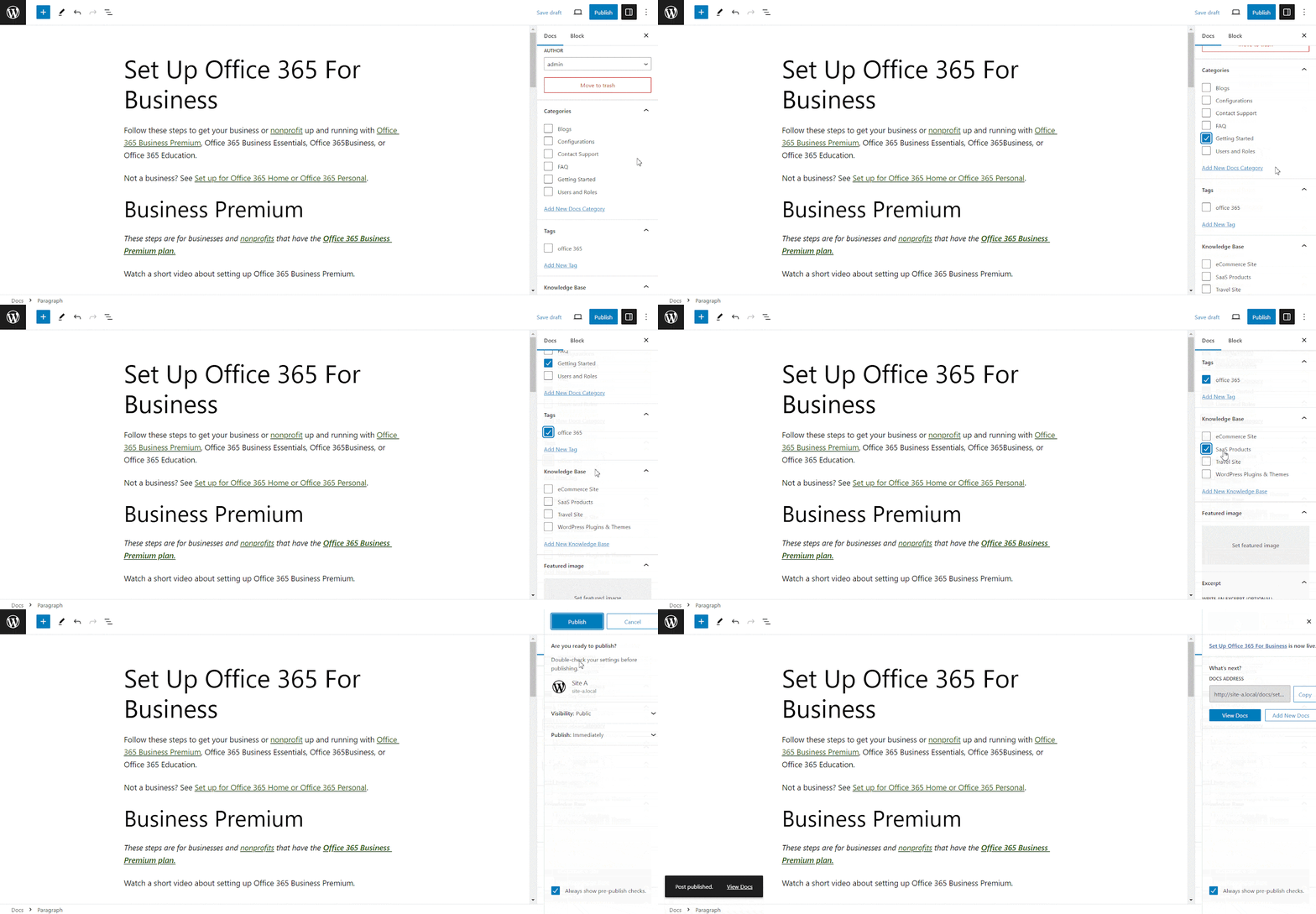
Now, let’s create new documentation from the ‘Add New’ section of BetterDocs. You can go ahead and add the preferred title and description and pick categories. To display this article under the ‘Baza wiedzy’ you have created, you will have to choose the ‘Baza wiedzy’ option. You can pick multiple knowledge bases if you want. Afterwards, simply ‘Publish’ the article.
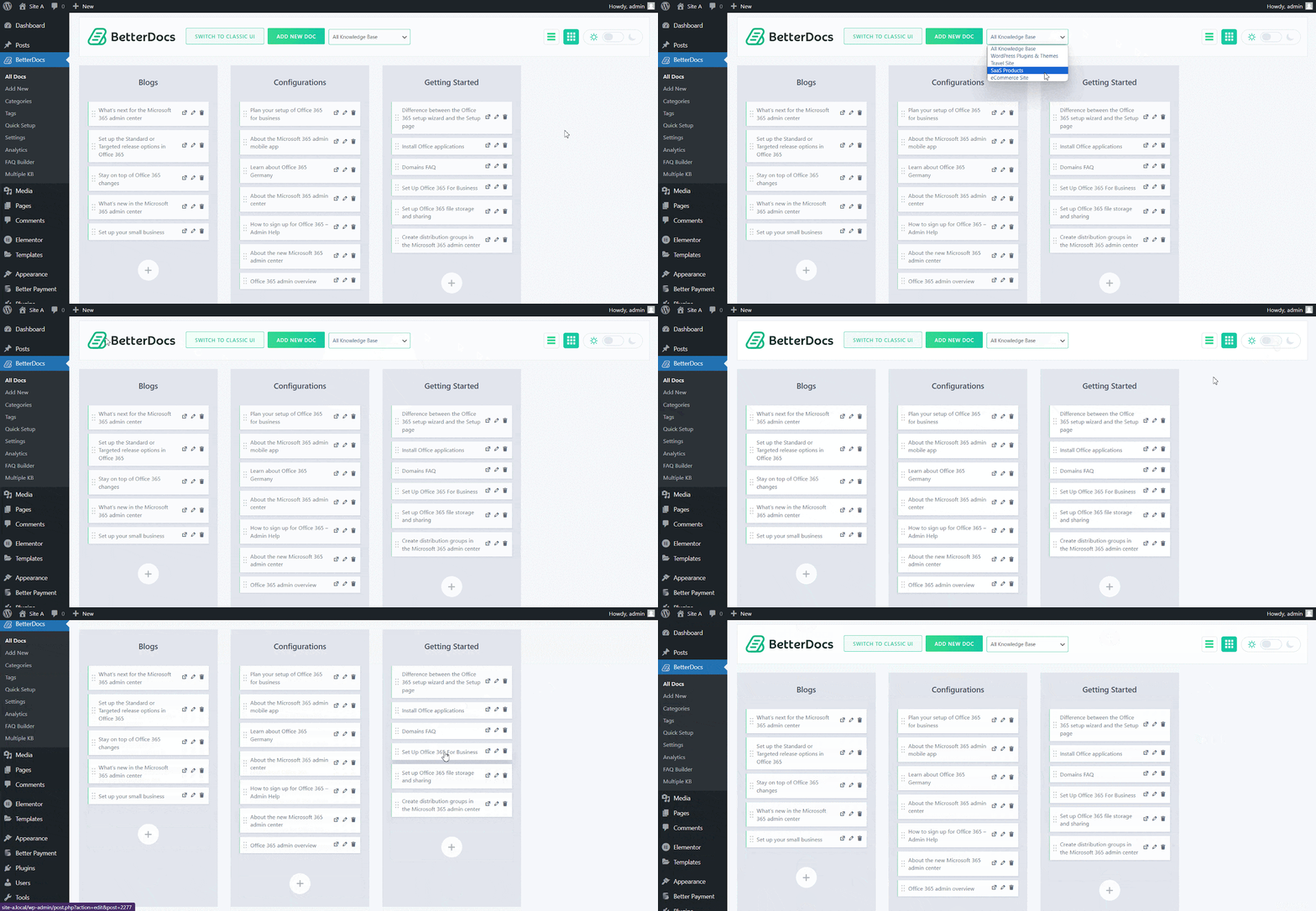
Od ‘All Articles’ możesz skorzystać z menu rozwijanego, aby wyświetlić artykuły w odpowiednich bazach wiedzy.
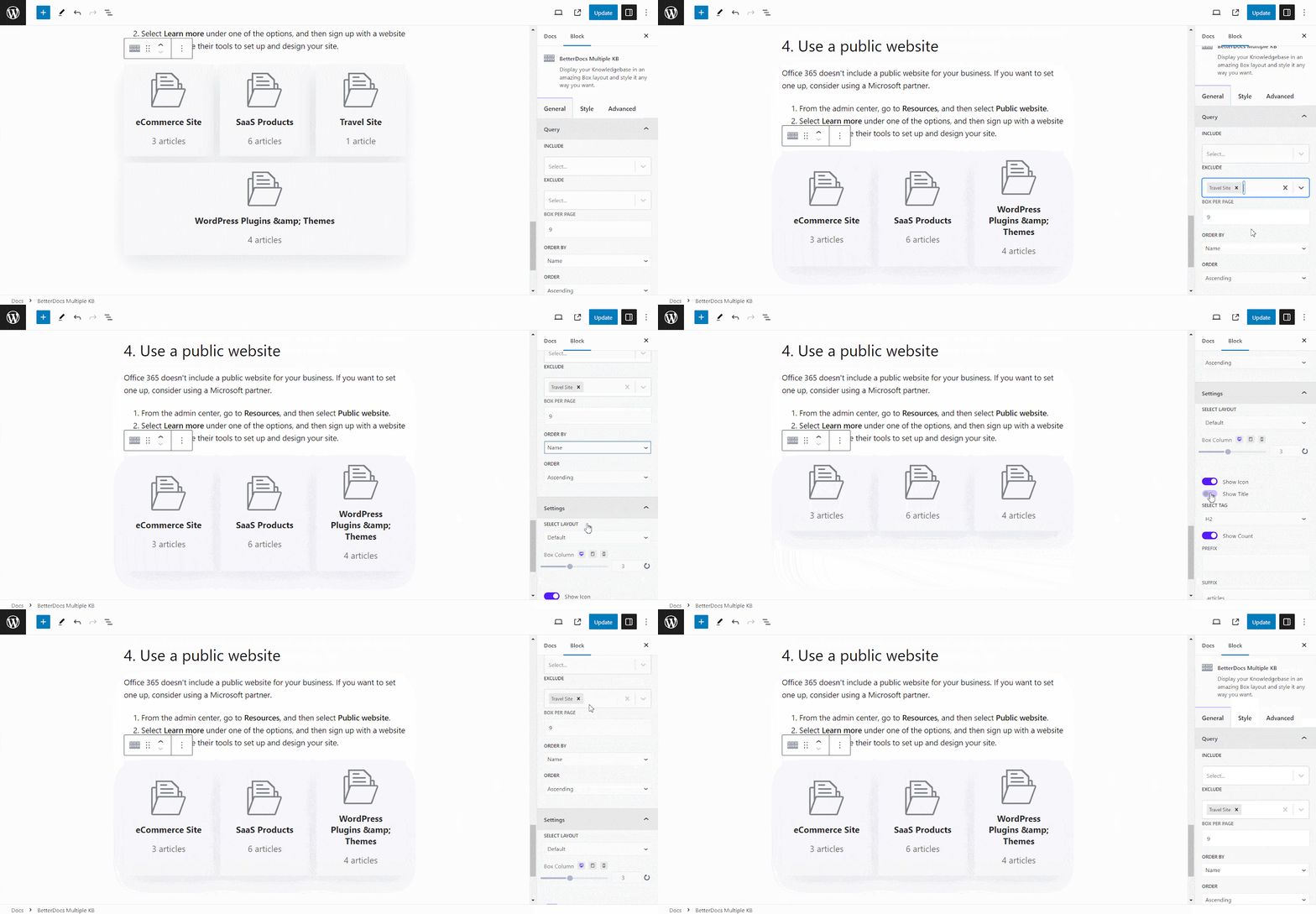
BetterDocs lets you add multiple knowledge base sections inside your existing documentation with a simple block in the Gutenberg editor. It will help your readers get access to other similar documents without having to look elsewhere. To add multiple knowledge bases in a document, simply search for ‘BetterDocs Multiple KB,’ and add the block.

Here, you can customize the Multiple KB section with content and design needs. There are options to include or exclude a specific knowledge base. Additionally, you can set the display order, enable or disable icons, choose to show or hide the counts, and more. On the ‘Style’ tab, you will find options to change the height, width, background colour, image, etc., for the box, icon, title, and count.
Krok 5: Dostosuj wygląd #
Co więcej, możesz zmienić wygląd dokumentacji online, używając dwóch ekskluzywnych układów BetterDocs dla ‘Multiple KB’ cechy. Aby to zrobić, musisz udać się do BetterDocs -> Ustawienia -> Projekt, and click on the ‘Customize BetterDocs’ section.
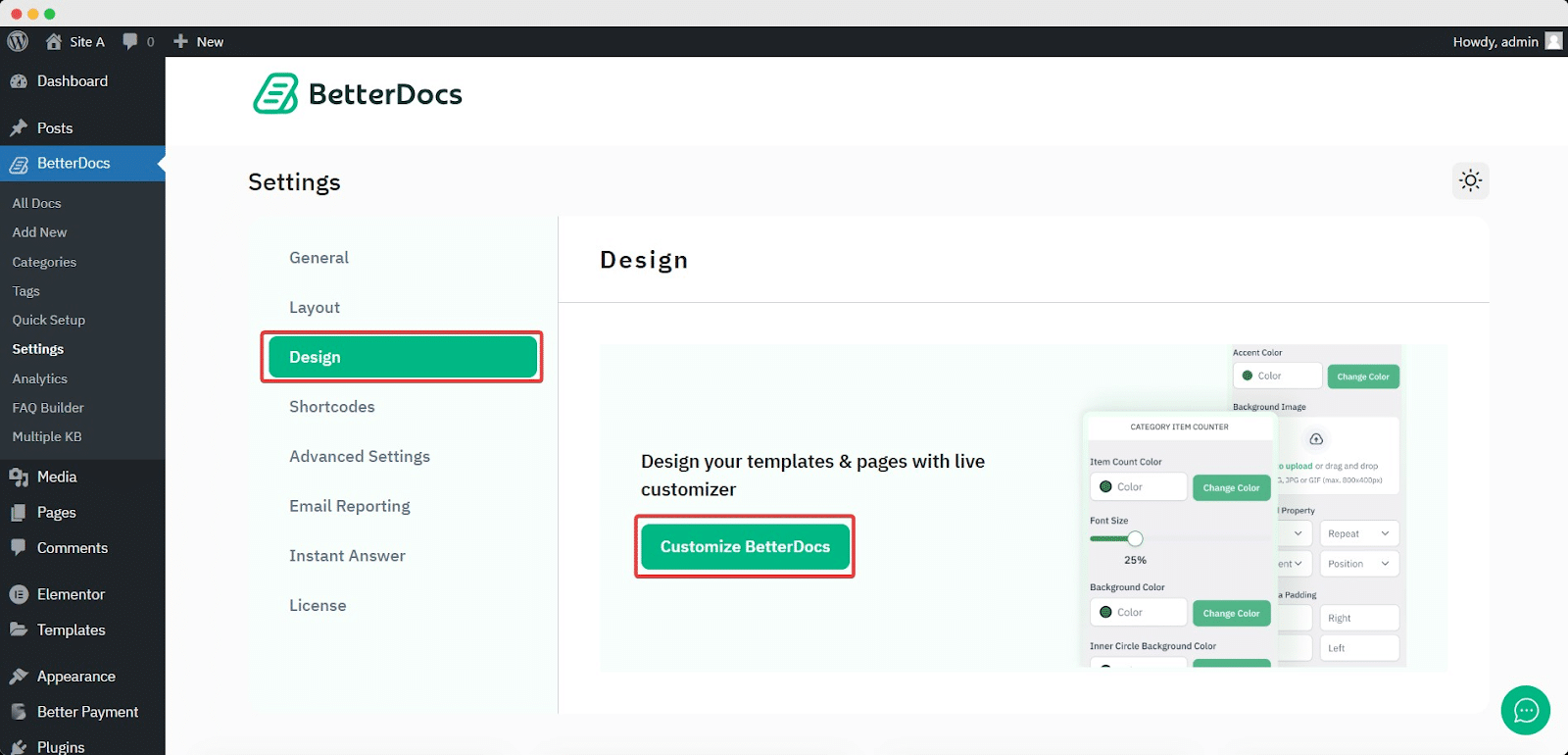
You will get a separate section named ‘Multiple KB’ to dostosuj Twoja baza wiedzy. Możesz wybrać jeden z dwóch układów. Poza tym dostaniesz inne ekskluzywne funkcje stylistyczne to modify the background colour, add a background image, configure the title colour, font size, content spacing, and more to make the BetterDocs documentation site interactive for your website visitors.

Ostateczny wynik #
Po prostu wykonując wszystkie powyższe kroki, będziesz mógł dodawać i zarządzać multiple knowledge bases łatwo z BetterDocs na swojej stronie WordPress.
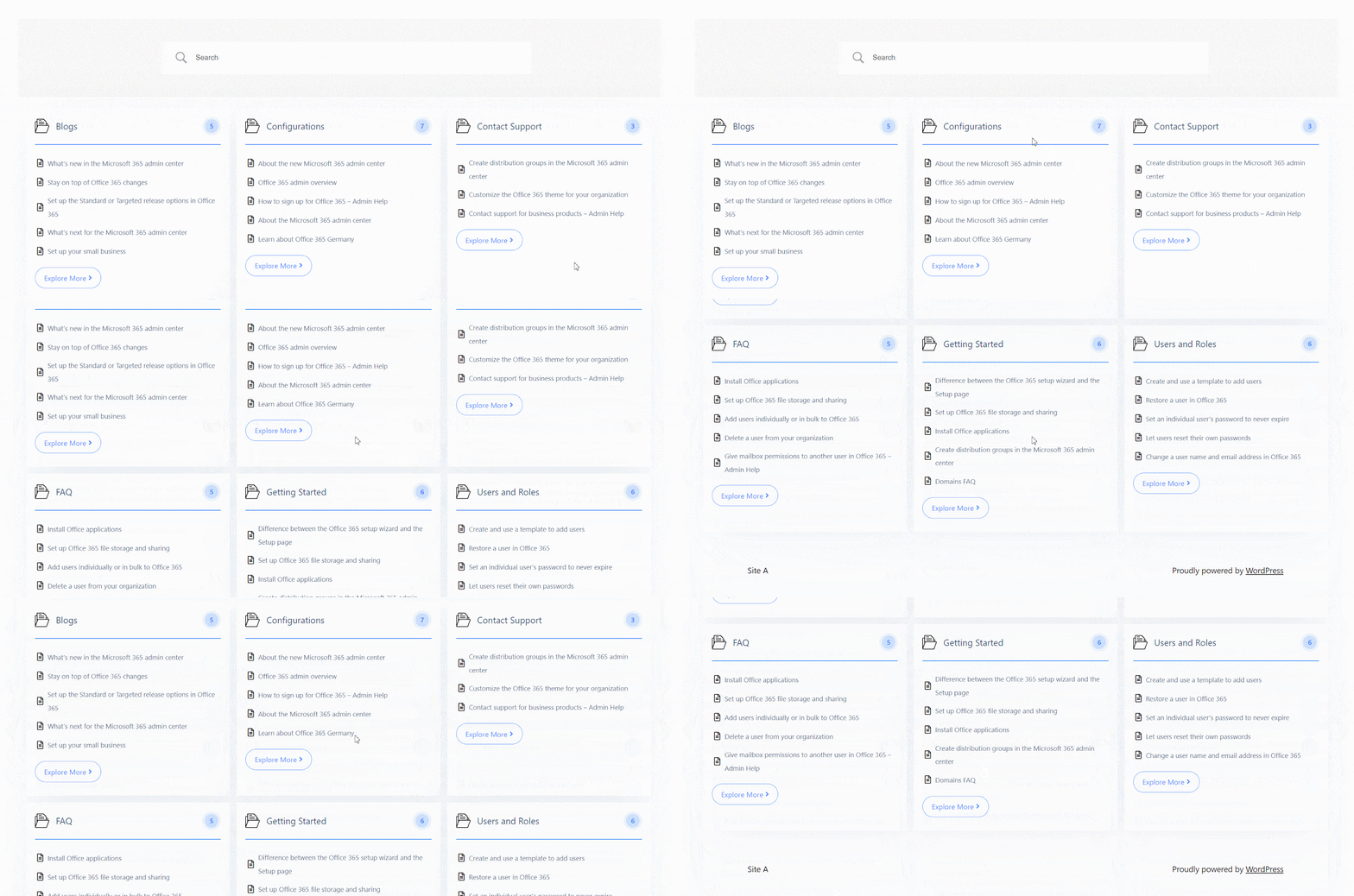
Z pomocą BetterDocs, this is how you can manage multiple knowledge bases on your WordPress website and reduce pressure on your support system.
Utknąć? Zapraszamy do kontaktu z naszym dedykowany zespół wsparcia.


