
BetterDocs gives you the freedom to customize the Archive Pages and change their appearance any way you want. Now, let’s follow the below guidelines to 自定义文档存档页面 在BetterDocs中:
Step 1: Go To BetterDocs Settings #
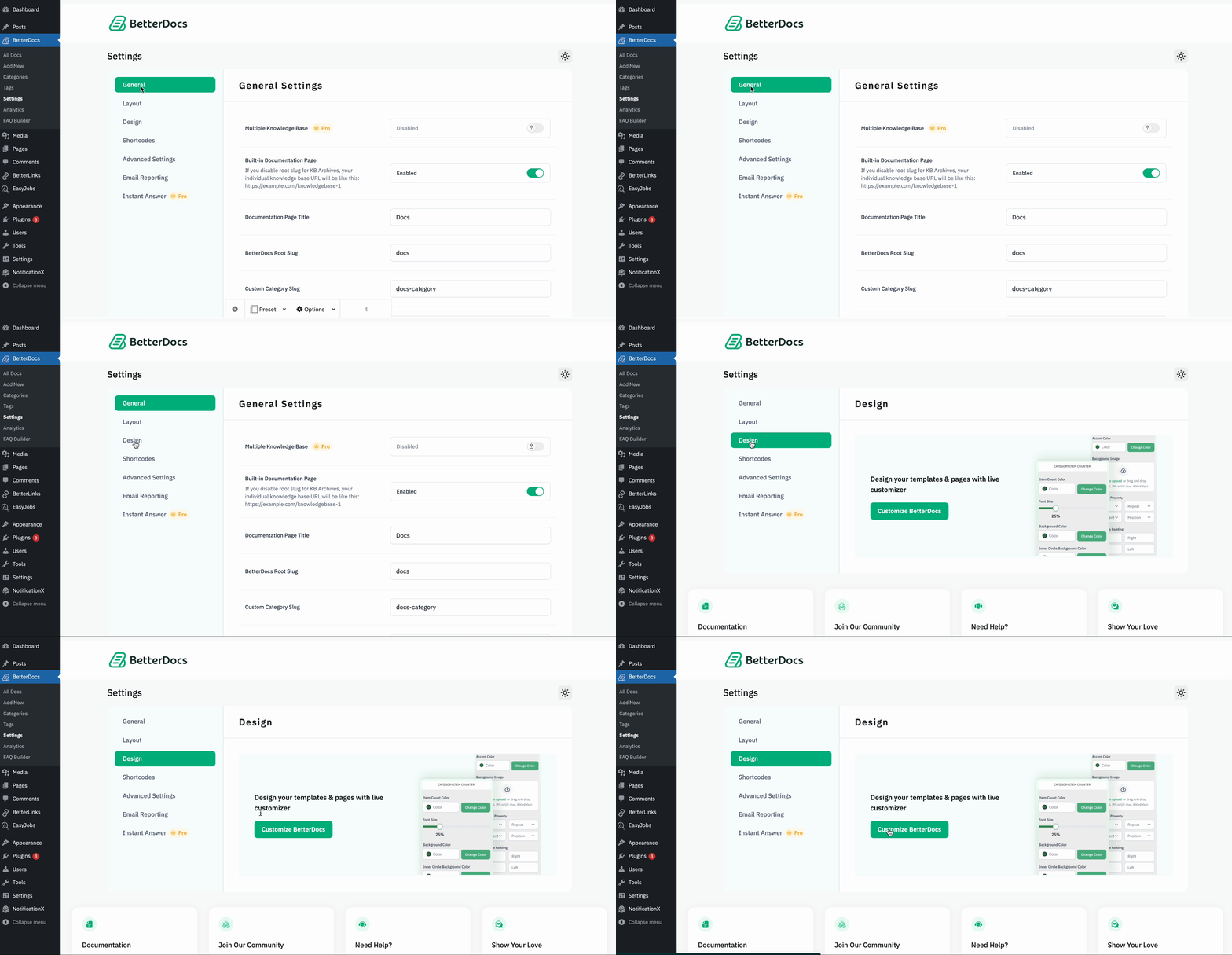
First of all, go to the BetterDocs Settings by navigating to wp-admin-> BetterDocs->设置。之后,打开 '设计' 标签。现在,点击 “自定义BetterDocs” 按钮,您将被重定向到“自定义”页面。
Step 2: Configure Customize BetterDocs Option #
从 ‘BetterDocs Customizer’, you can pick the ‘Archive Pages’ option. You will then find all the styling options to modify the appearance of the 存档页面 选项。
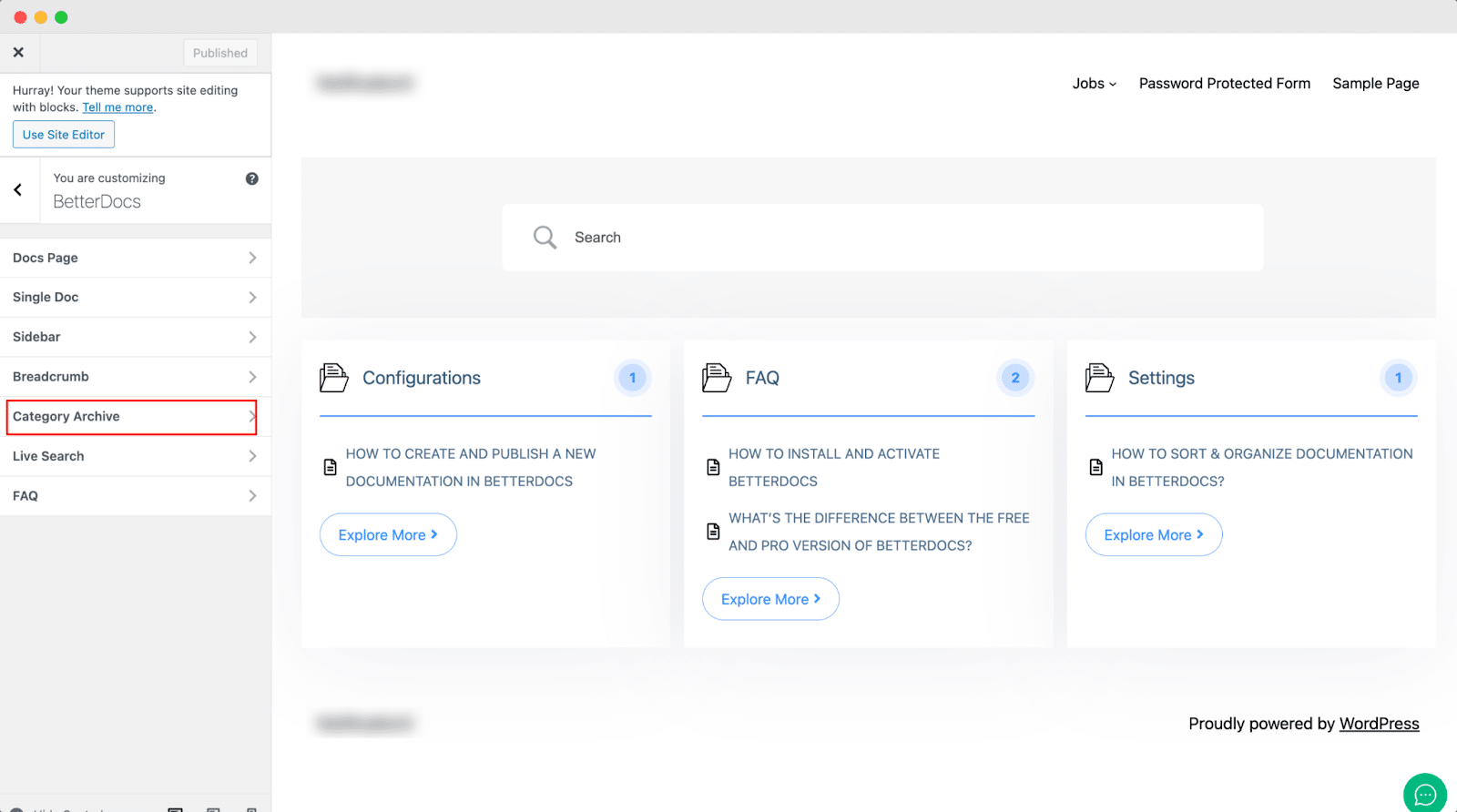
默认, BetterDocs定制器 redirects you to the doc landing page as a preview. So, you can click on the ‘Category’ and you will be redirected to the respective archive pages. Afterward, you can check out the changes you make in real-time.
之后,您可以继续并更改页面背景,内容区域背景,标题,列表图标等的颜色。如果需要,您甚至可以添加一个 ‘Background Image’ and change its properties as well. Besides, you can play around with the Content Area Margin and Archive Title Margin. Make sure to hit on the '发布' 按钮以保存您的更改。
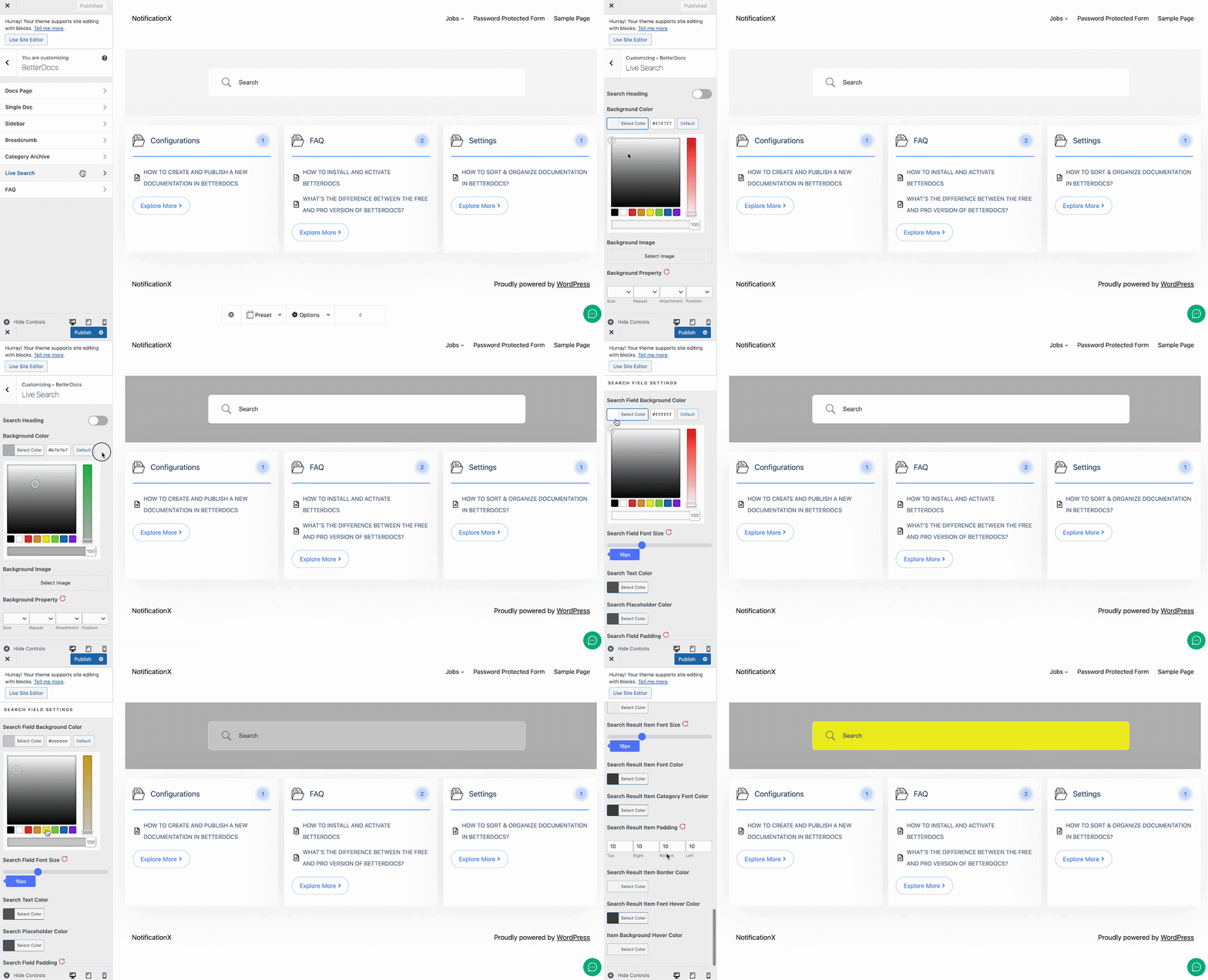
This is how easily you can customize the documentation archive pages with BetterDocs and enhance your user experience.
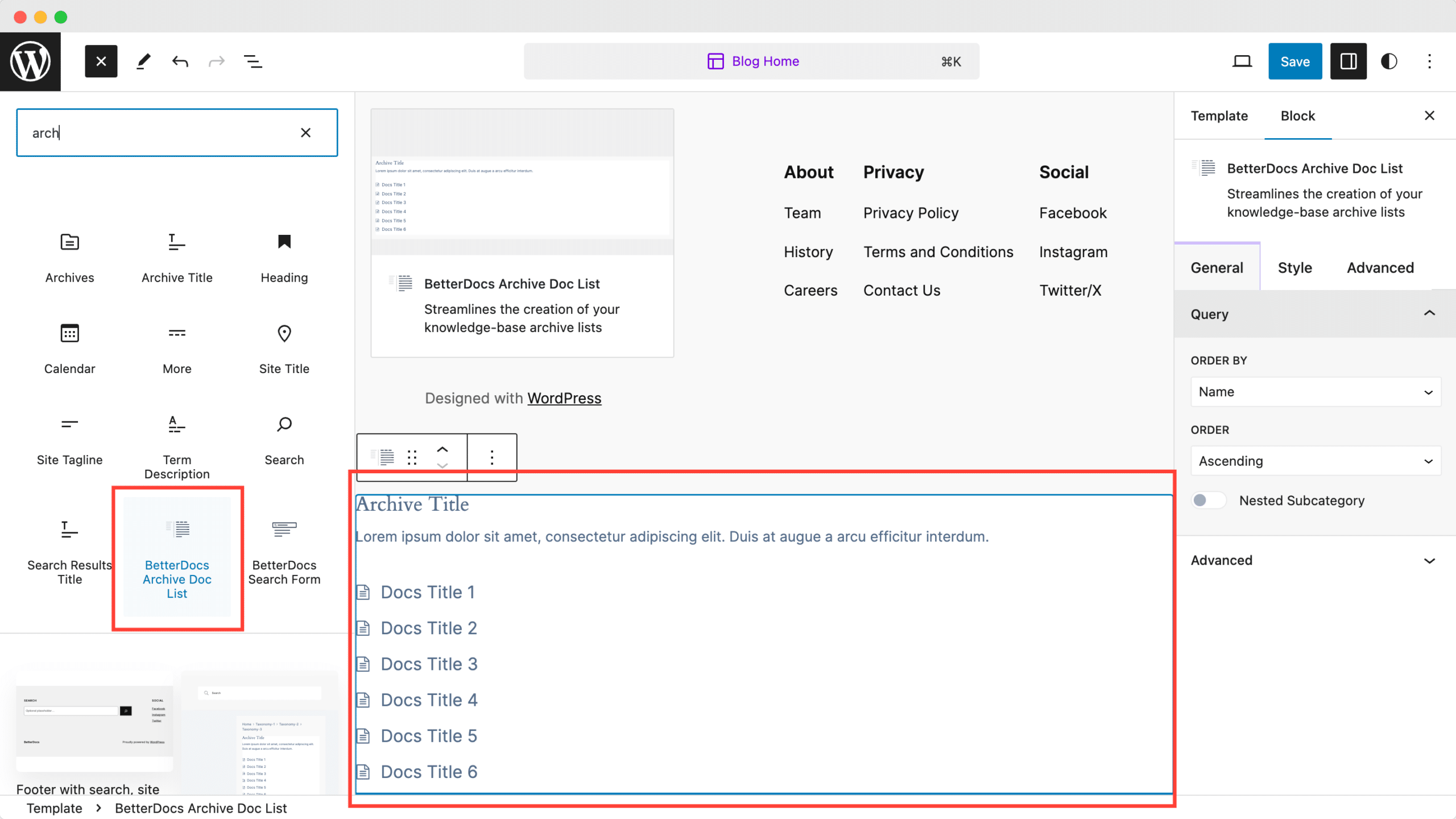
Moreover, BetterDocs provides a Full Site Editor compatible block of archive page list feature where you can select different orders and more. You can now choose different doc list designs directly using BetterDocs compatibility for the WordPress full site editor.
If you face any difficulties, feel free to contact our support team.


